TL;DR
- Use Tools → Redact, not the rectangle or highlight tools
- Apply redactions before saving — until you do, they're just marks
- Run Sanitize Document every time — it strips metadata, comments, and bookmarks the redactions can't reach
- Save the redacted file under a new name; Acrobat keeps undo history in the original
- Verify with our /verify page before sharing
Why most people get this wrong
The most common "redacted" PDF on the internet is a PDF with black rectangles drawn on top of the text. The rectangles are annotations — anyone can select the text underneath, copy it out, or delete the rectangle entirely. Acrobat has had a proper Redact tool for years that actually rewrites the document so the content is gone, but it's easy to miss for two reasons: you have to enable it from the Tools panel, and the redactions aren't permanent until you explicitly Apply them. There's also a second step almost no one runs — Sanitize Document — that removes metadata, hidden layers, and comments that the redaction step doesn't touch.
This guide walks through both.
Open the PDF in Acrobat
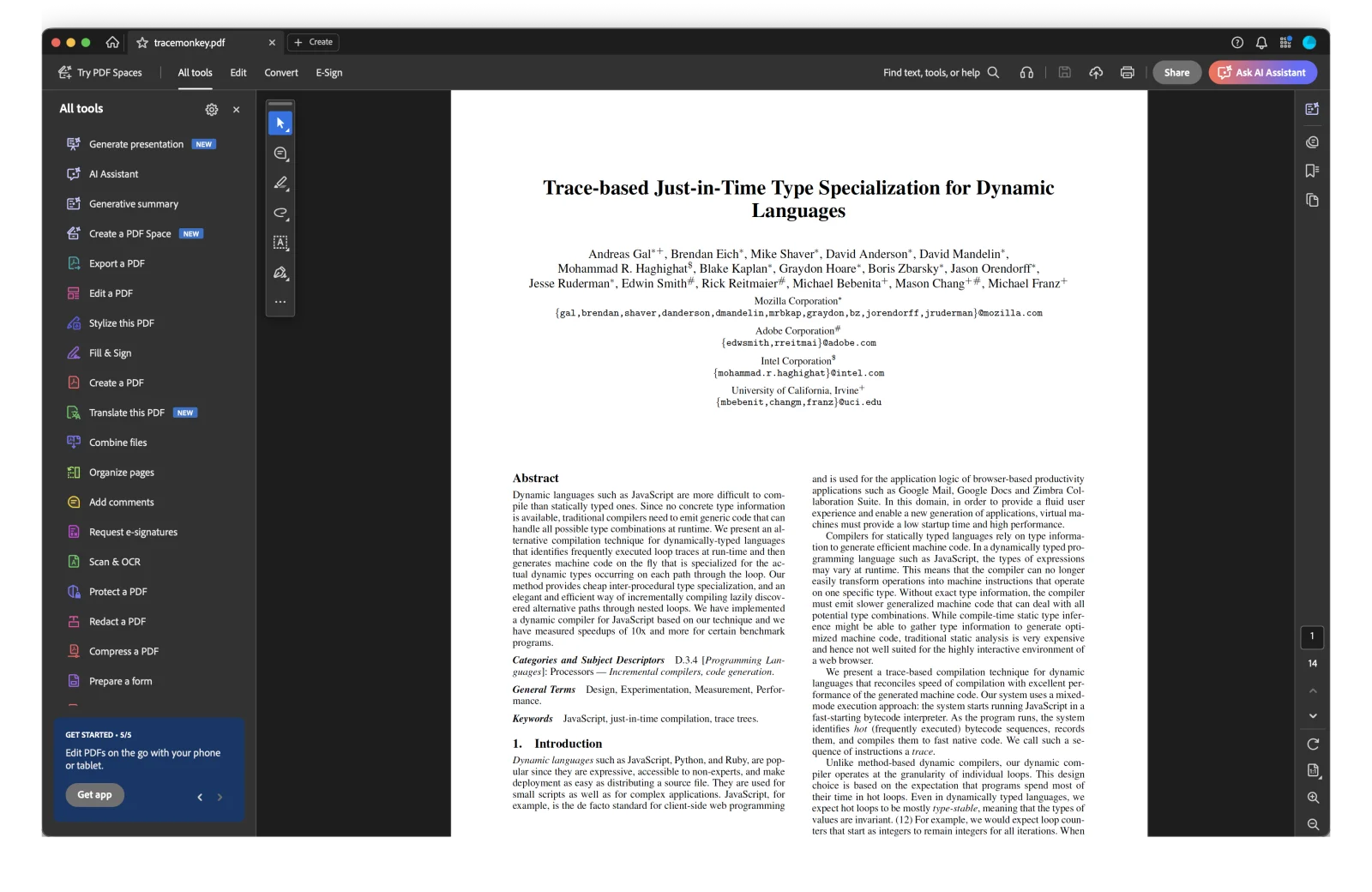
Mark text and regions for redaction
From the left-hand Tools panel, choose Redact (or Tools → Redact from the menu bar). The cursor turns into a redaction marker. Drag across any text or region you want to remove. To redact a single word or line, double-click or click and drag.
To find every occurrence of a name or number across the document, use Find Text from the Redact toolbar and then Mark Checked Results for Redaction.
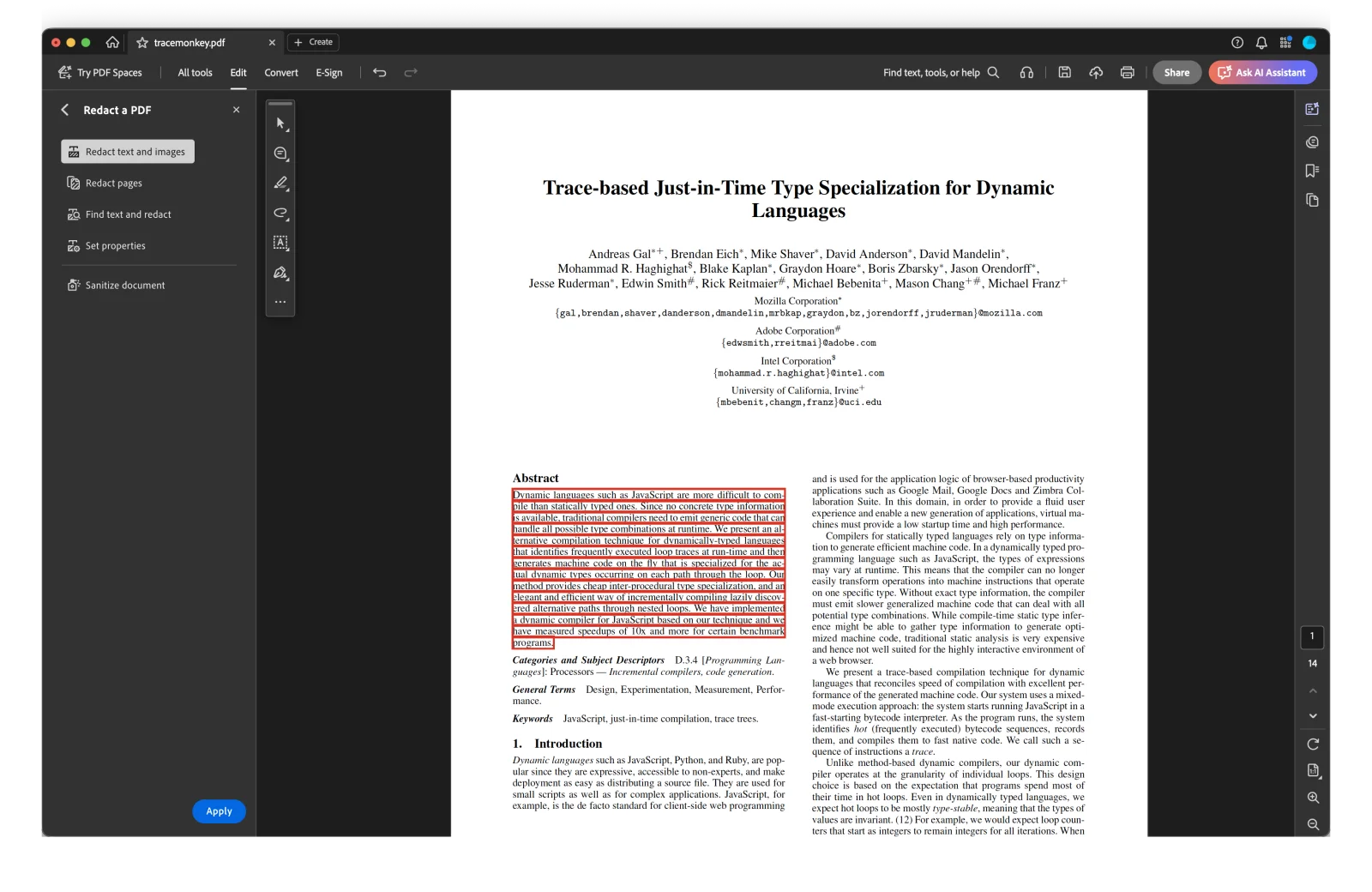
At this point nothing is permanent. The marks are just intentions.
Apply redactions
Click Apply in the Redact toolbar. Acrobat will ask you to confirm — say yes. This is the step that actually rewrites the document and removes the underlying text and image data. Until you click Apply, the redactions are recoverable annotations, not redactions.
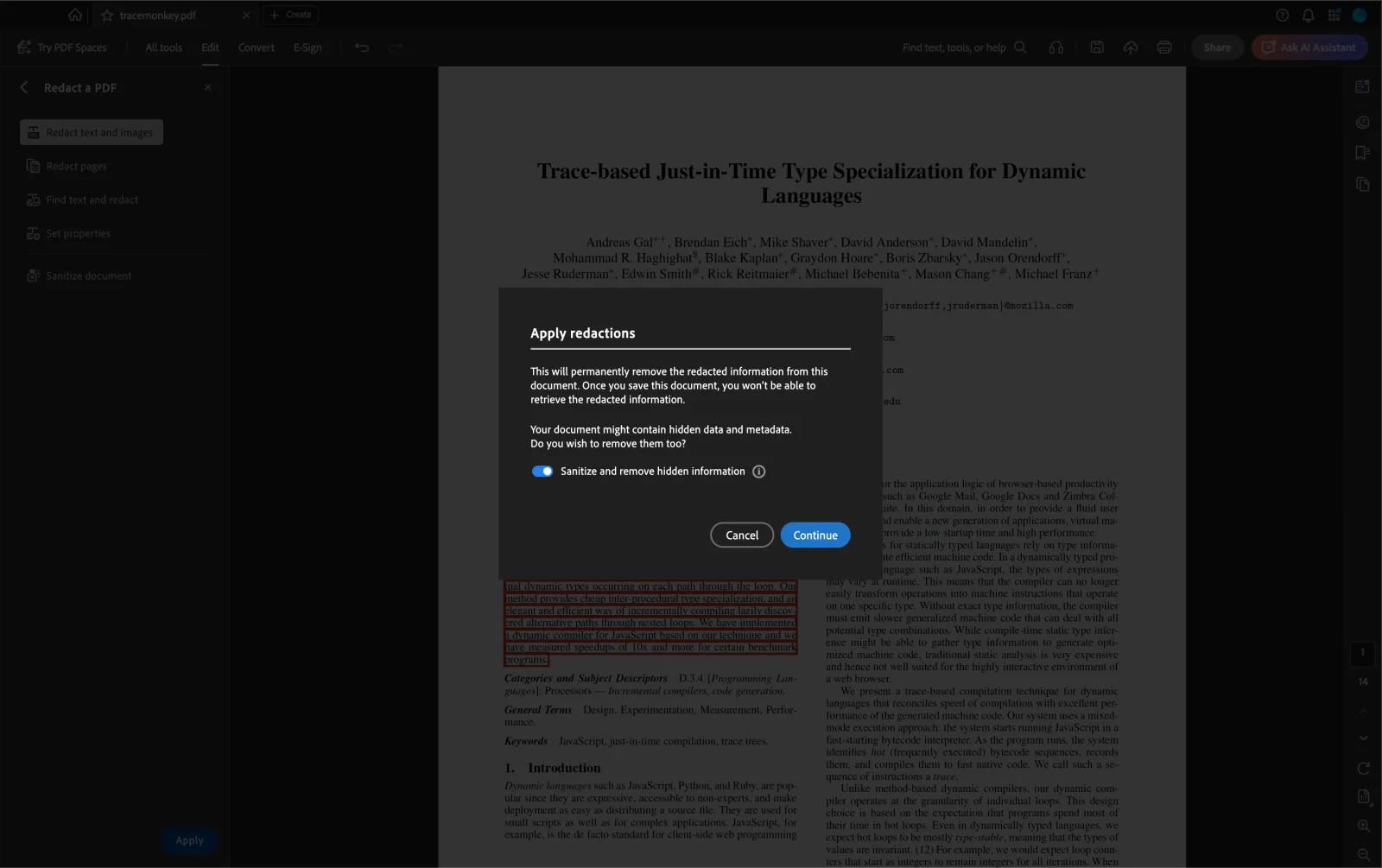
Sanitize the document
After Apply, Acrobat may prompt you to Sanitize Document. If it doesn't, run it manually from Tools → Redact → Sanitize Document. Sanitize removes metadata, comments, bookmarks, attached files, hidden layers, JavaScript, and form data — anywhere sensitive content could be hiding outside the visible page.
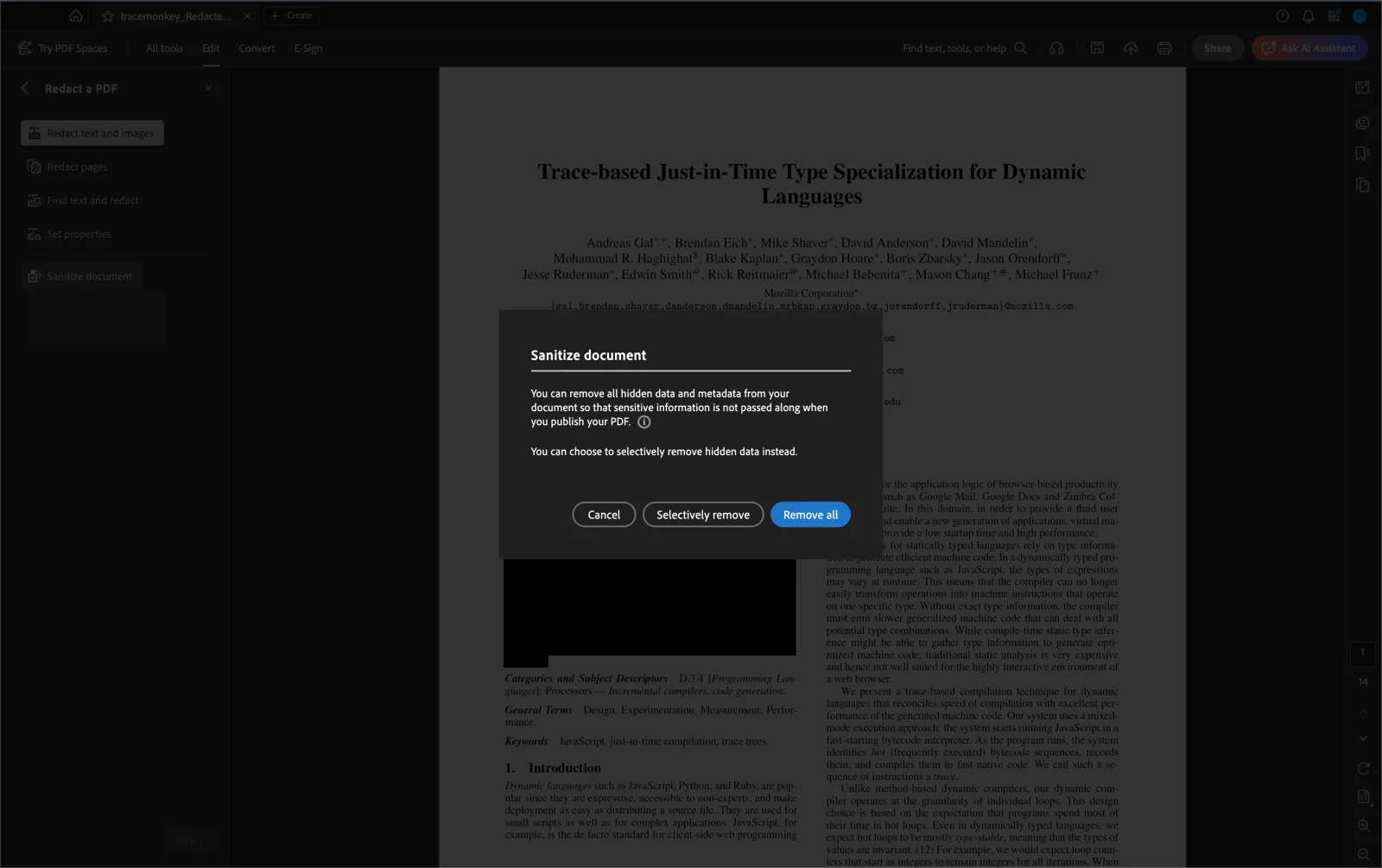
This step is the difference between a document that looks clean and a document that is clean. Don't skip it.
Save as a new file and verify
Use File → Save As and pick a new filename. Saving over the original is risky — Acrobat keeps a working copy of pre-redaction state, and some workflows can recover from it.
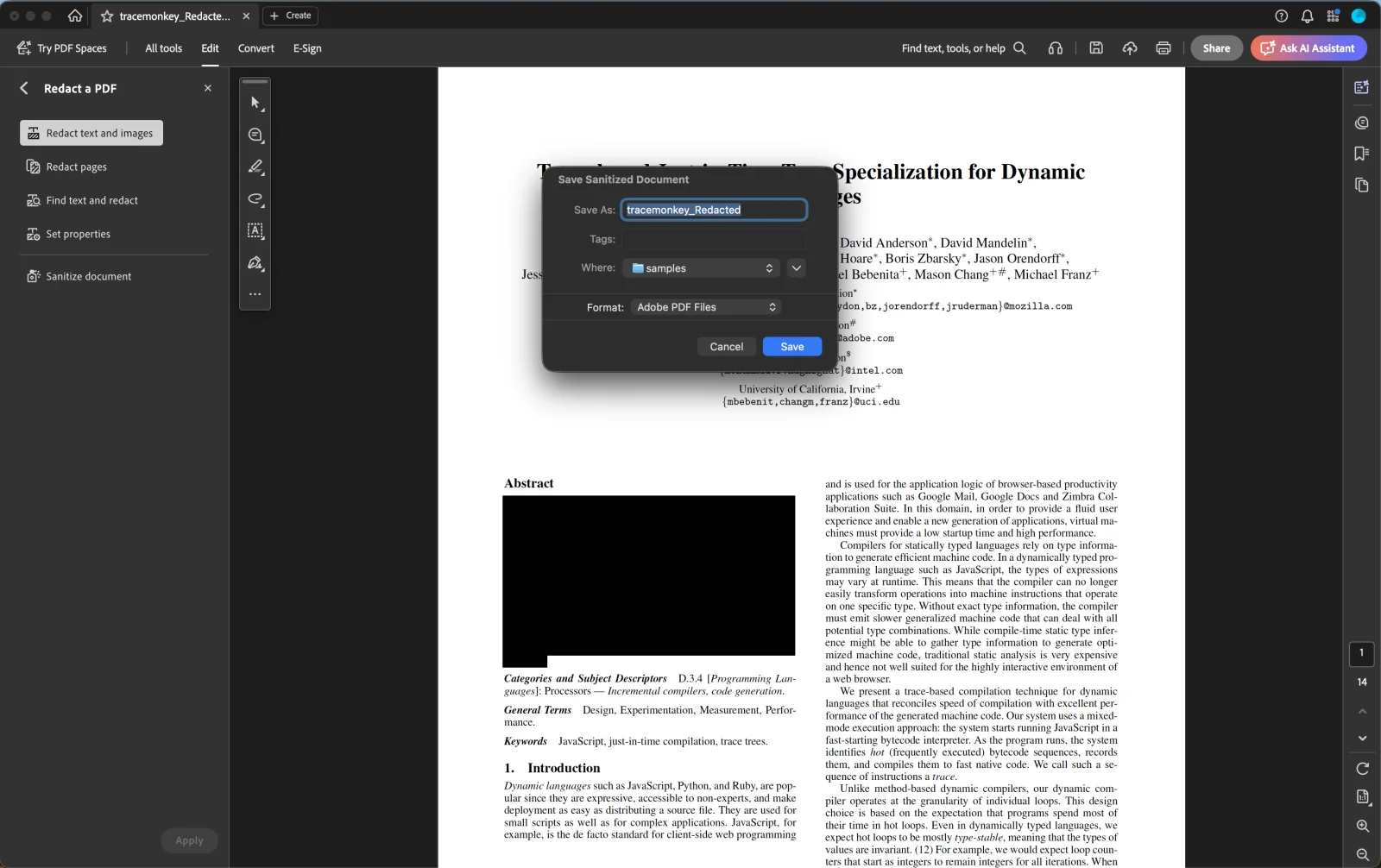
Then verify: open the saved file in a fresh window, try to select text where the redactions are (you shouldn't be able to), and search the document for one of the redacted strings (you shouldn't find it). For an automated check, drop it into our /verify page.