TL;DR
- You need the original
.docx, not the PDF — Word can't redact a PDF directly - Replace sensitive text with
[REDACTED](or similar). Don't highlight in black — the text underneath survives the PDF export - Accept all tracked changes and turn track changes off before exporting
- Run Inspect Document — it strips comments, author info, and revision history
- Export with File → Save As → PDF (or Export → PDF)
- Verify with our /verify page before sharing
Why most people get this wrong
Word is a perfectly good tool for producing a redacted PDF — provided you have the original .docx. Two failure modes. First: highlighting text in black and exporting — the underlying characters survive and can be selected straight out of the PDF. Second: forgetting to clear track changes, comments, and document metadata — the exported PDF then leaks author names, edit history, and reviewer commentary.
Both are easy to avoid once you know to look for them.
Open the source document in Word
Open the original .docx (or .doc) in Microsoft Word. If you only have a PDF, Word can't redact it directly — convert it to a Word document first (File → Open with a PDF in newer versions does this automatically) or use Acrobat instead.
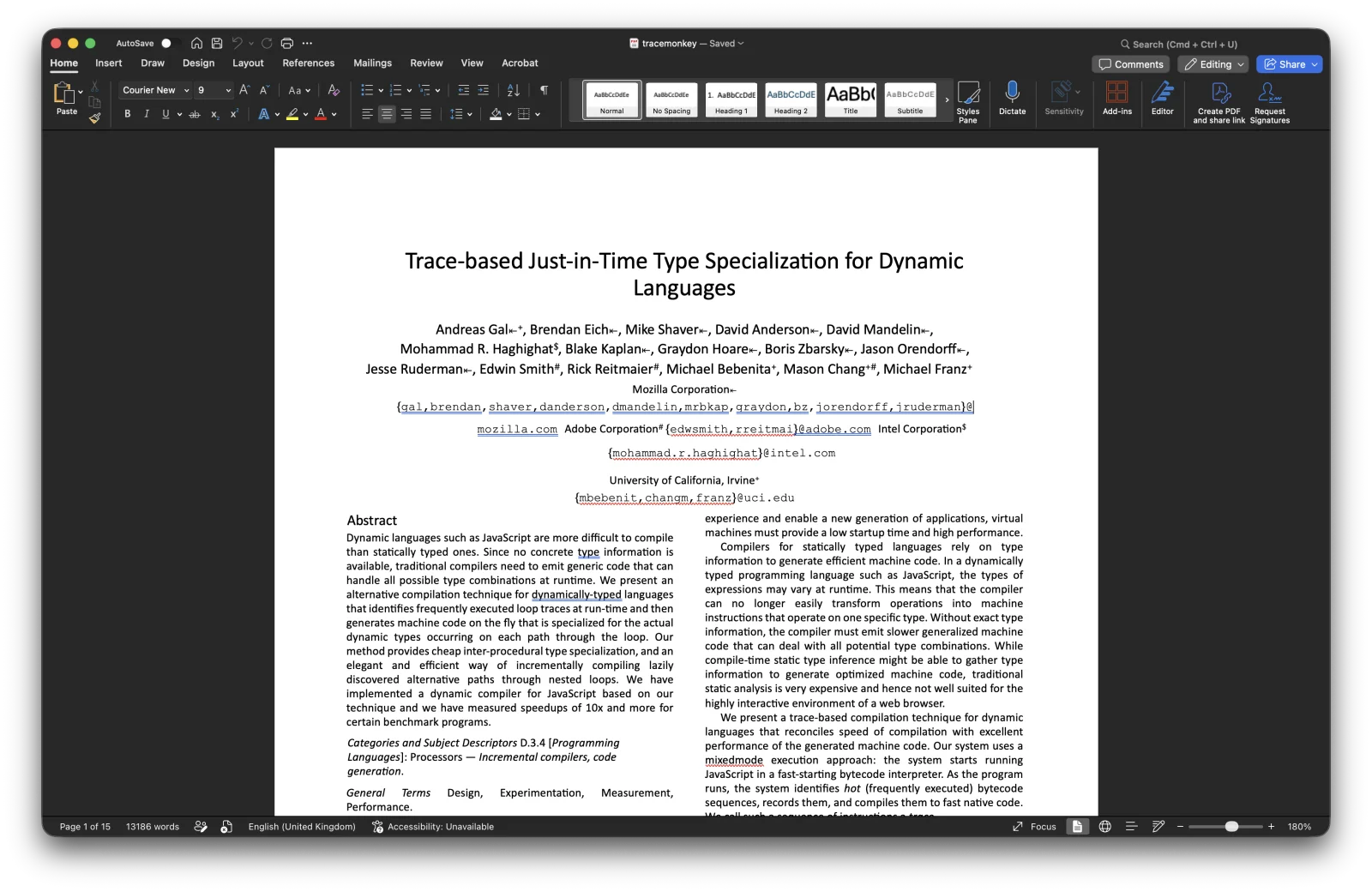
Replace sensitive text with redaction marks
The safest approach is destructive replacement: select the sensitive text and replace it with [REDACTED], █████, or similar. For repeated names or numbers, use Edit → Find → Replace (or Cmd+H / Ctrl+H) to do it in one pass. Don't apply a black highlight or font colour — both keep the underlying text intact.
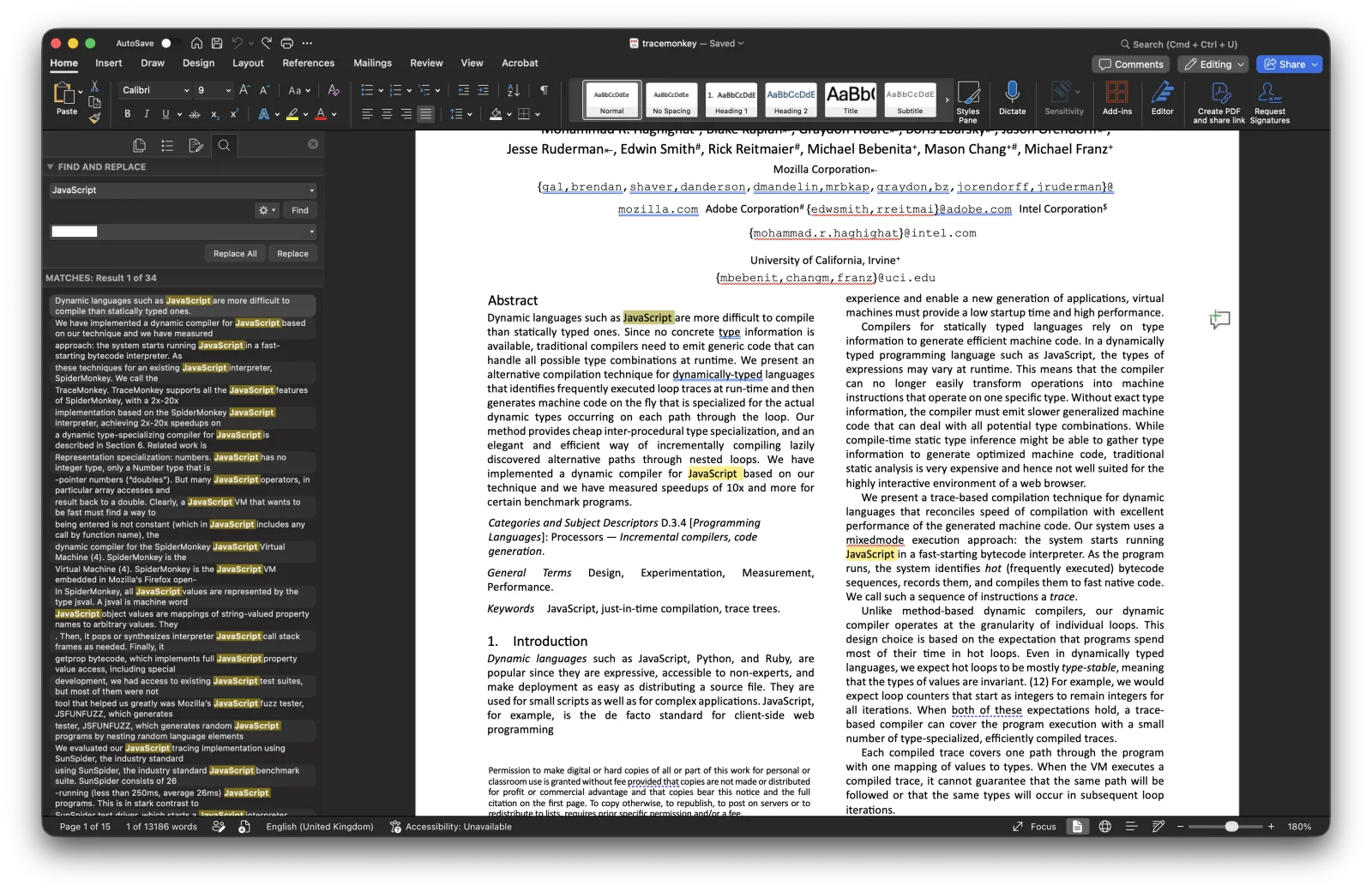
Accept all changes and turn off track changes
If track changes is on, the redacted versions will appear as edits and the original will be preserved as the "before" state. Both will be exported into the PDF. Go to Review → Track Changes and turn it off, then Review → Accept → Accept All Changes.
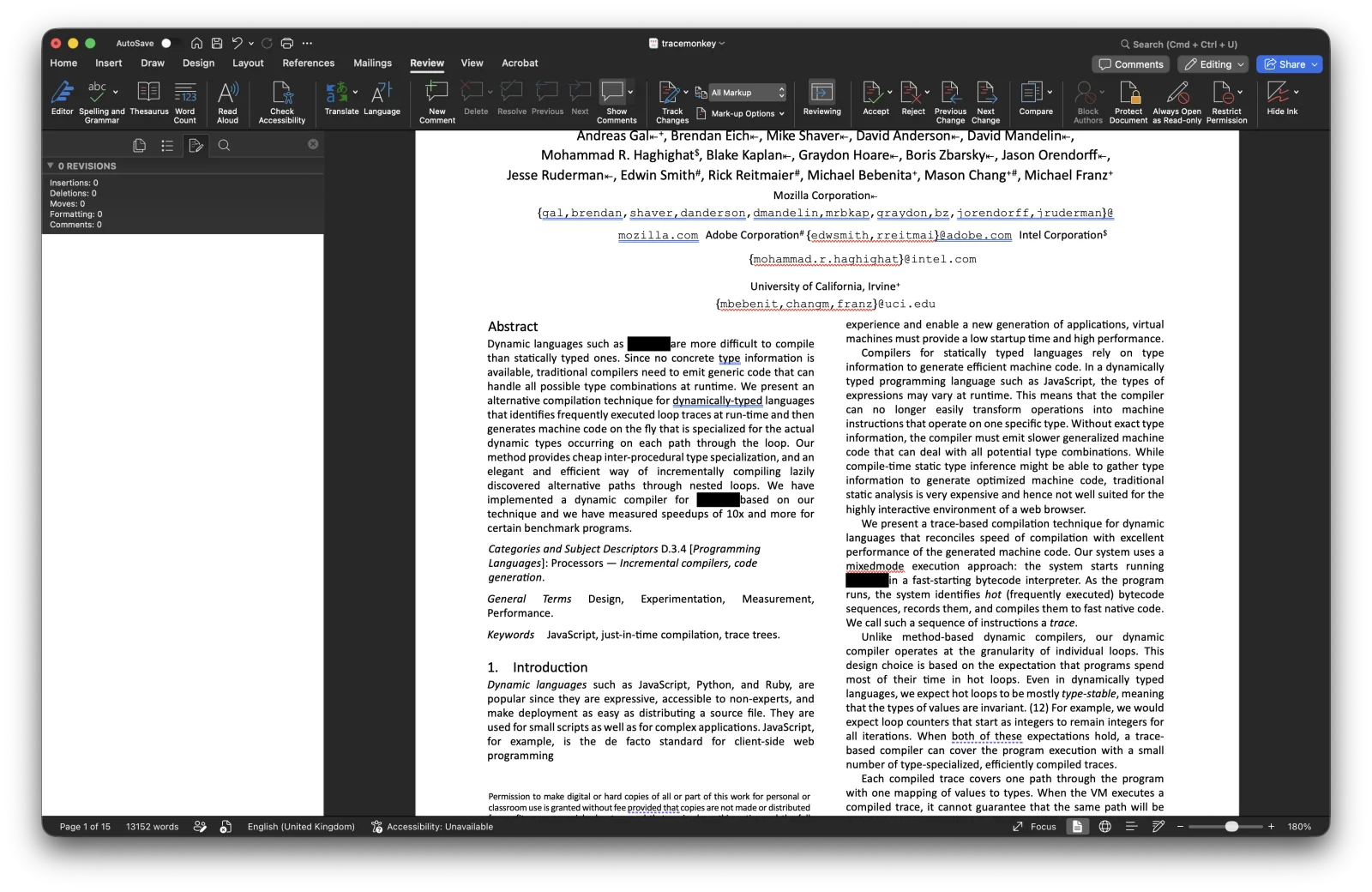
Run the Document Inspector
Word stores comments, author information, hidden text, custom XML, and revision history alongside the visible document. File → Info → Check for Issues → Inspect Document (Windows) or Review → Protect → Remove Personal Information (Mac) opens the inspector. Run it and remove everything it flags except what you want to keep.
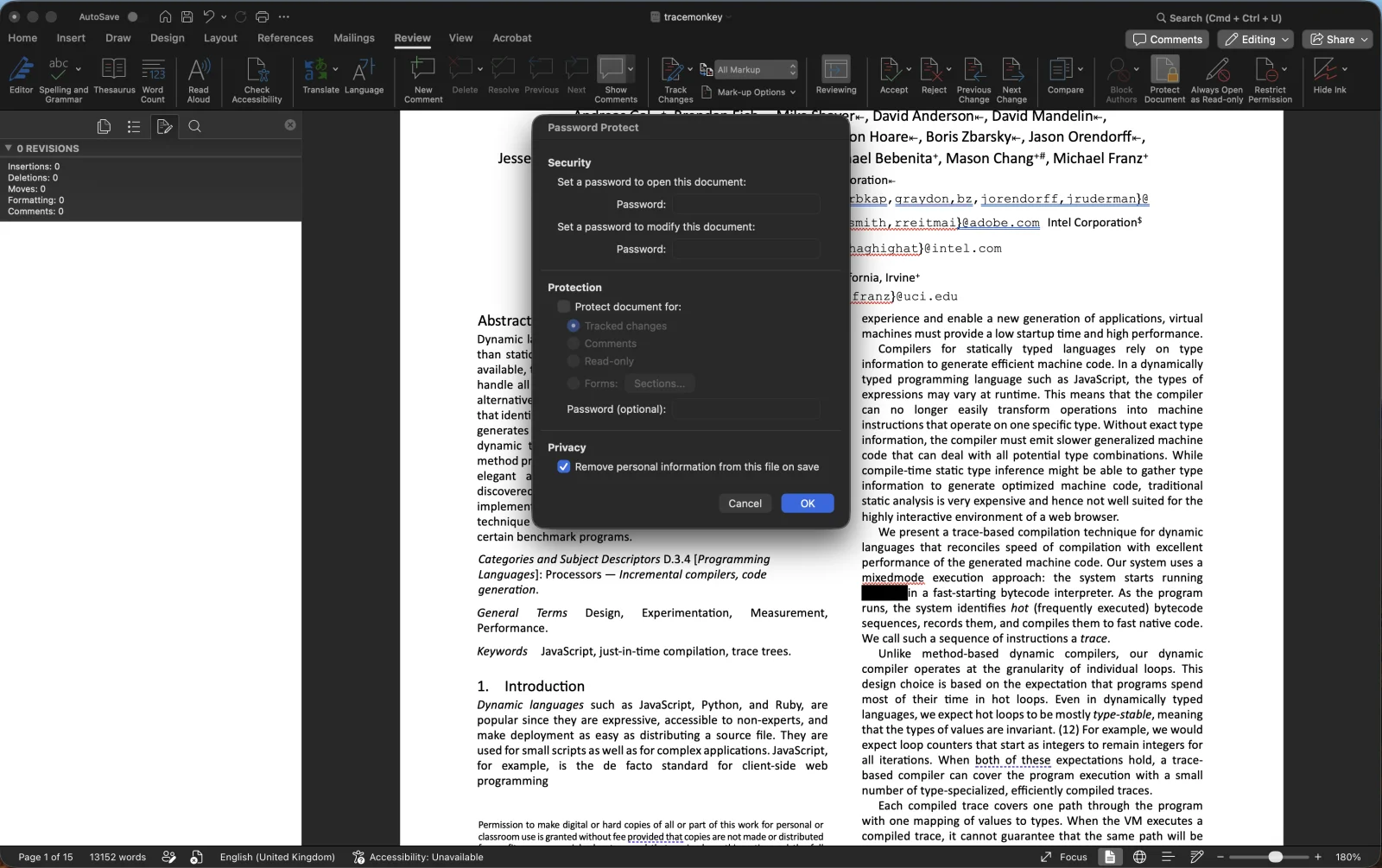
This is the step that prevents Reviewed by John Smith from ending up in your redacted PDF's metadata.
Export to PDF and verify
File → Save As (or File → Export), choose PDF as the format, and save under a new filename. Don't tick "Save as PDF/A" unless your archival workflow requires it — PDF/A imposes constraints you probably don't need.
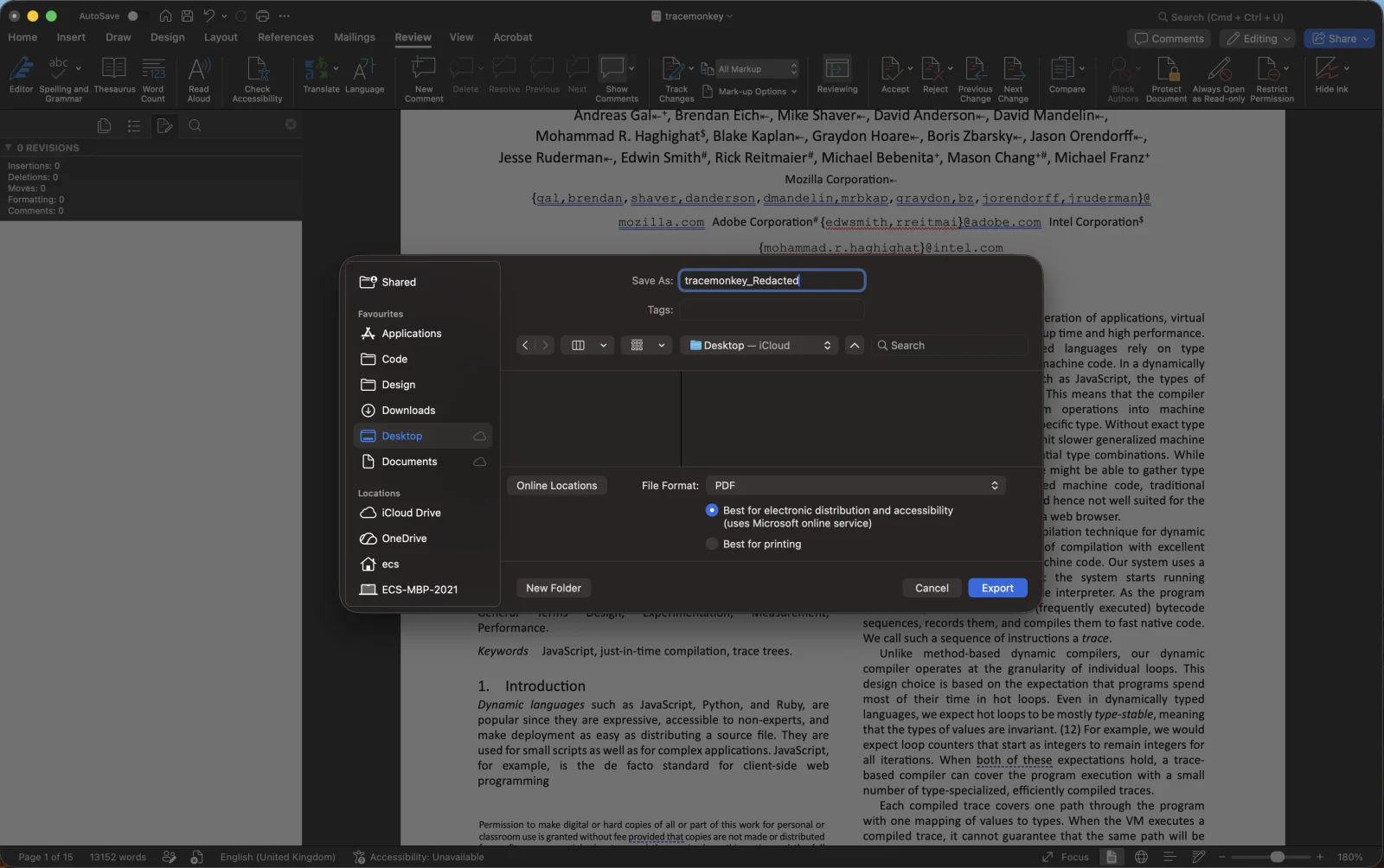
Open the exported PDF in a fresh window. Try to select any text where redactions were applied (you should only get the replacement characters). Search for one of the redacted strings (no results). For an automated check, drop it into /verify.