TL;DR
- You need macOS Ventura (13) or later for the real Redact tool
- Don't use the rectangle annotation as a stand-in — text underneath stays selectable
- Always Export to PDF rather than just saving, so the redactions are flattened
- Verify with our /verify page before sharing
Why most people get this wrong
Before macOS Ventura, Preview didn't have a real redaction tool. People worked around it by drawing a black rectangle on top of the text and saving the file. The text underneath is still there — selectable, copyable, searchable. Ventura added a proper Redact tool that actually removes the text from the document. If you're on an older macOS, Preview isn't the right tool: use Acrobat or Word instead.
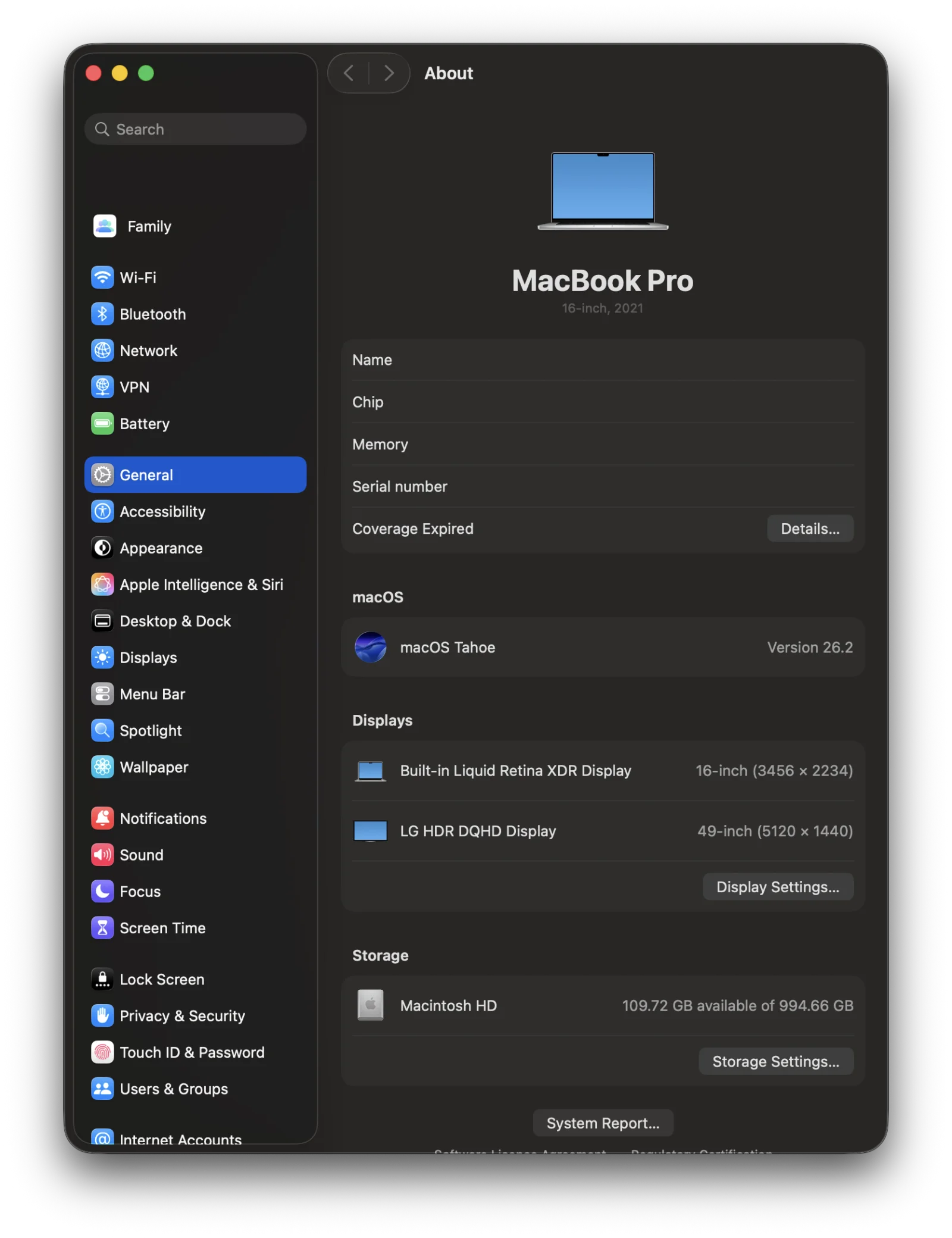
Check your macOS version
Click the Apple menu → About This Mac. You need macOS Ventura (13) or later for the real Redact tool. On older versions, Preview's annotation tools only draw shapes on top of the page — the underlying text remains.
Open the PDF in Preview
Open the PDF in Preview (it's the default PDF viewer on Mac — just double-click). If a different app opens, right-click the file → Open With → Preview.
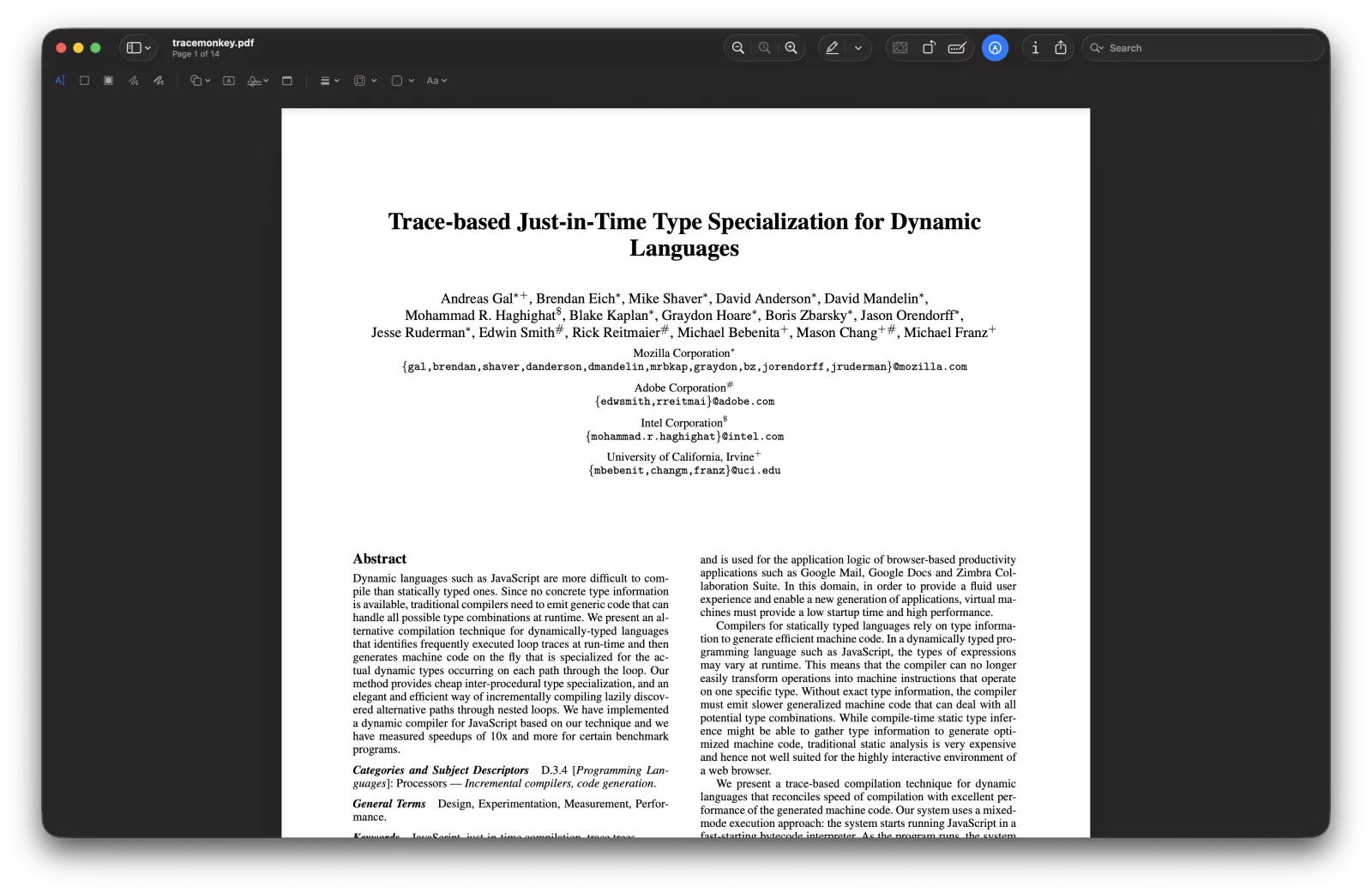
Use the Redact tool
Open the markup toolbar (View → Show Markup Toolbar, or click the marker icon). Choose Redact (the icon looks like a black bar with a marker). Click and drag across the text you want to remove. Preview will warn you that the action is permanent and ask for confirmation — that's the right behaviour.
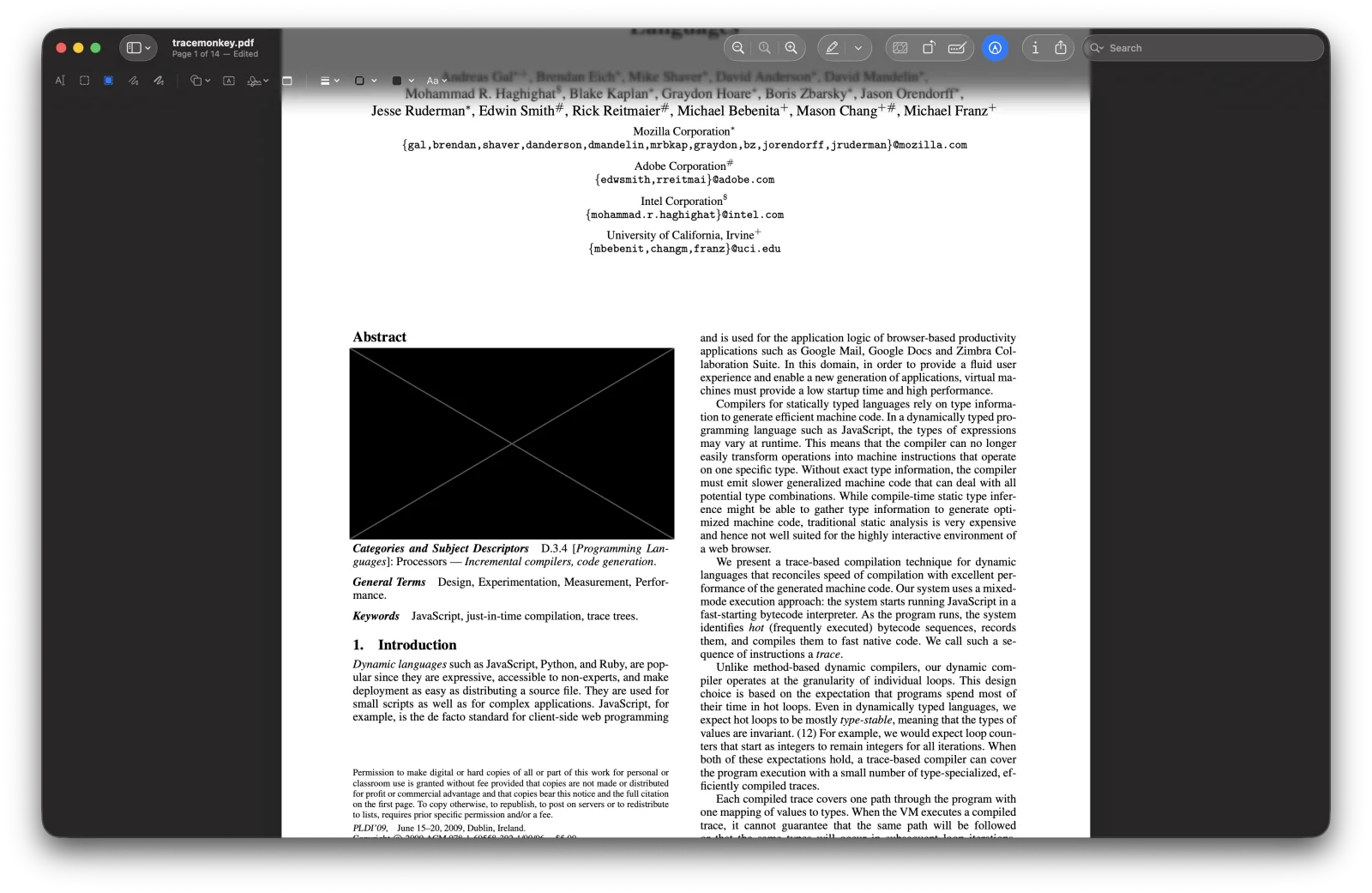
The text isn't just hidden under a black box — Preview removes it from the document when you save.
Export to PDF, then verify
Use File → Export as PDF… (not just Save). Export forces Preview to flatten the document, which is what you want for a final shareable file.
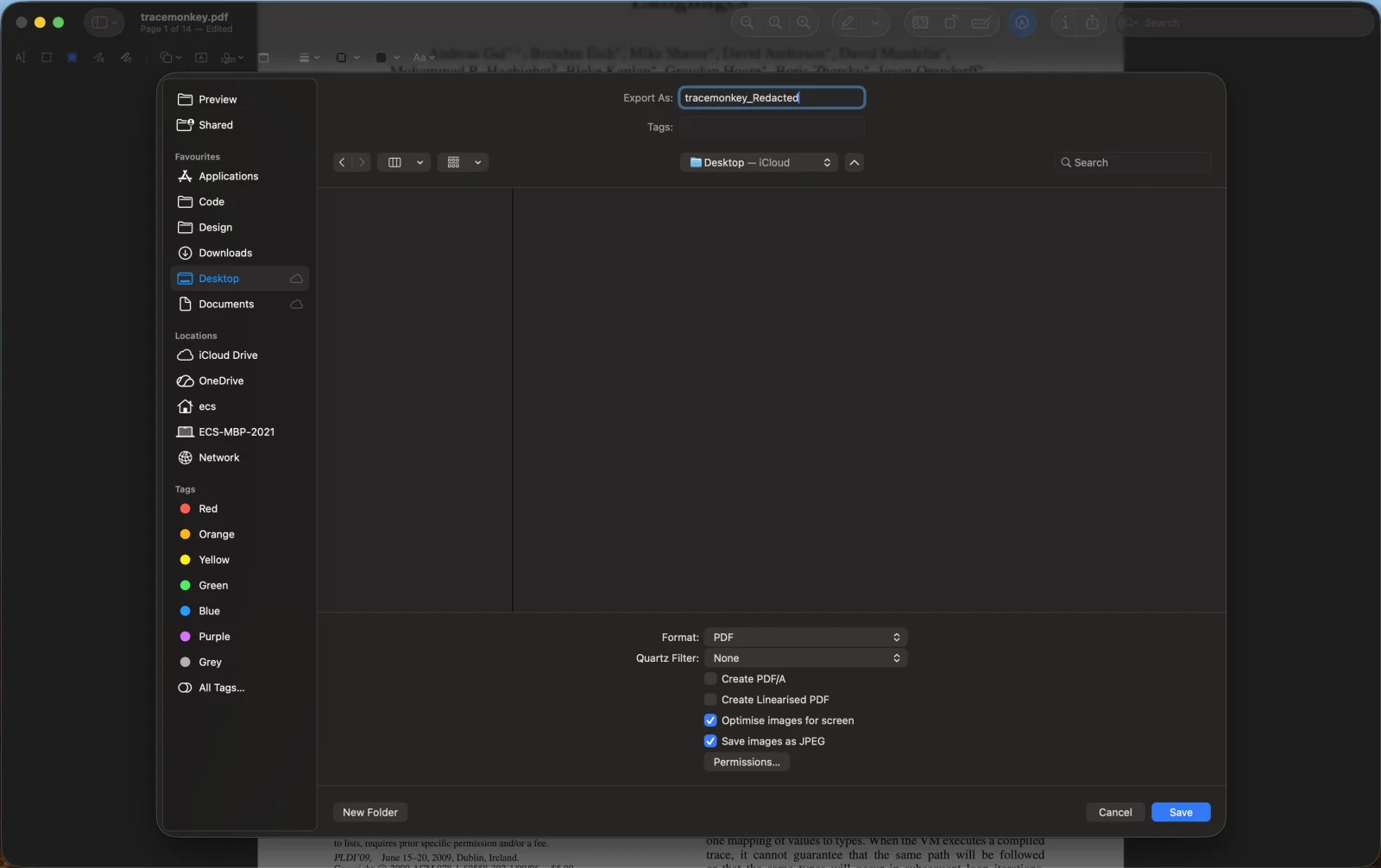
Open the exported file in a fresh window, try to select text where the redactions are (you shouldn't be able to), and search for one of the redacted strings (no results). For an automated check, drop it into /verify.